CurvesFull
An interactive bezier curve editor for keyframe easing and speed ramps. Drag the control points to shape the ease, then apply to selected keyframes — much faster than AE's built-in Graph Editor for common shapes.
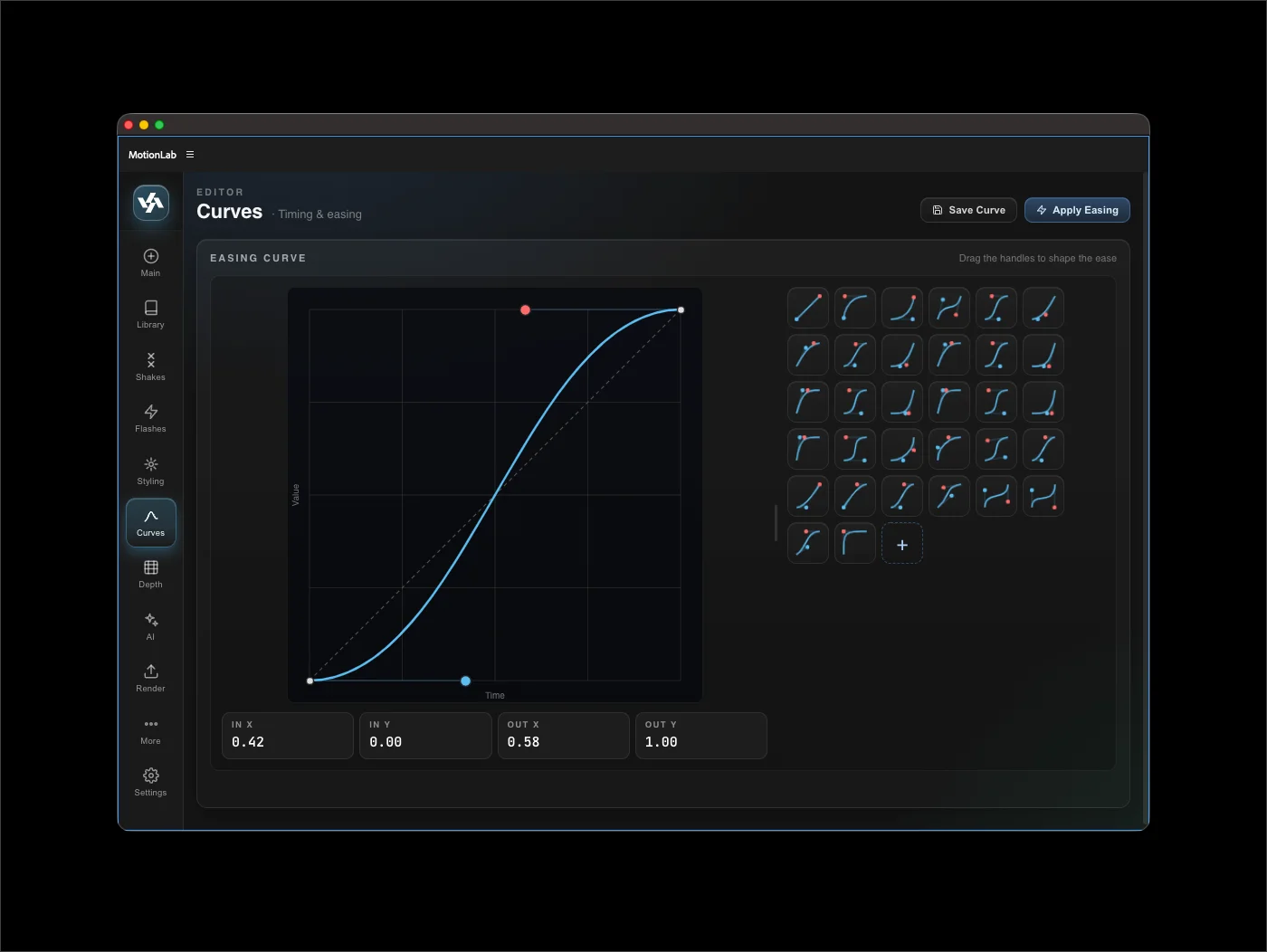
The editor
The canvas shows a unit-square bezier curve with two draggable control points (red dots). The horizontal axis is time; the vertical axis is value (or velocity for time-remap segments). Numeric fields below the canvas show the exact In X, In Y, Out X, and Out Y values — type values directly if you prefer.
Apply to keyframes
- Select two or more adjacent keyframes on any property in your comp.
- Shape the curve in the editor (or pick a preset from the side grid).
- Click Apply Easing in the top-right of the Curves tab.
At this time the curve editor only works on time-remapped layers and cannot be applied to a reversed frame.
Save your curves
Click Save Curve to add the current curve to the preset grid for one-click reuse later. Saved curves live in {USER_DATA}/MotionLab/saved-curves.json.
Hover any saved preset for a mini-preview; click to load it into the editor. Right-click to delete.
Time remap helpers
For speed ramps using AE's Time Remap, two action-bar buttons help:
- Enable Time Remap — toggles time-remapping on the selected layer.
- Add Keyframe — drops a time-remap keyframe at the playhead.
Segment navigation
When working with multi-segment time-remap curves, the segment-nav bar lets you jump between segments and shows start/end time-remap values for each. Use it to fine-tune individual ramps without losing your place.
See the Cut to the Beat how-to for combining curves with audio markers.