Library
Your personal stash of effects, layer presets, and AE animation presets — saved once, reapplied with a click. Pro tier and above add the Sounds sub-tab for browsing the audio library.
Presets sub-tab
The Presets section houses three kinds of saved assets:
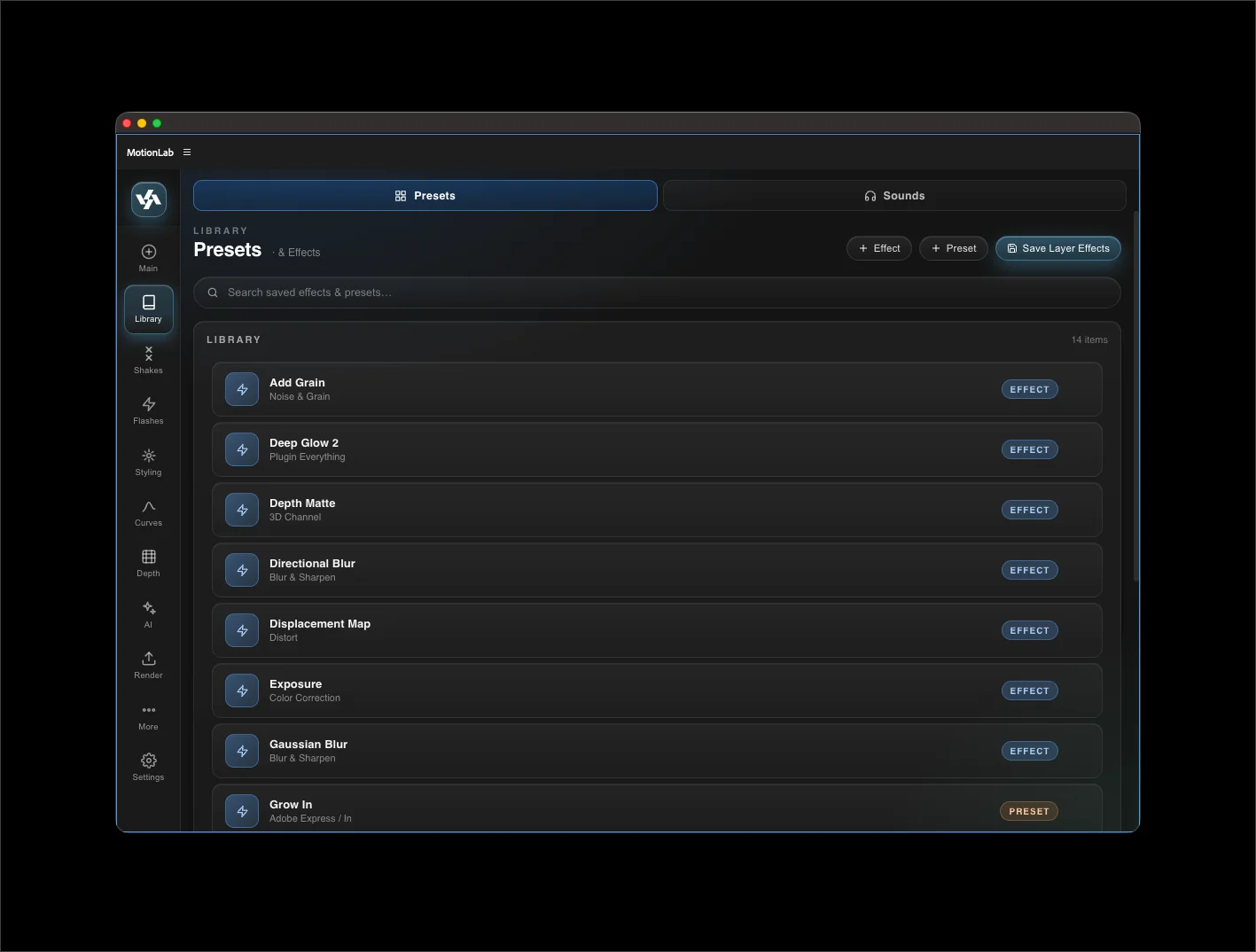
Single-effect favorites
Click the + button to open a searchable picker listing every effect installed in your AE — built-in and third-party. Select one and it's added to your library. Clicking the saved entry later applies that effect to the selected layer with its default parameters.
Layer presets
Save every effect (and their values) on a selected layer as a single preset. Use the Save current layer effects button. Applying the layer preset adds all of those effects, in order, to your selected layer.
.ffx animation presets
Import AE's native .ffx preset files. Click Import from AE Presets to scan the standard Presets folder (cross-platform). Applying an .ffx adds the preset to the selected layer exactly as AE would.
{USER_DATA}/MotionLab/saved-presets.json. The file is portable — copy it between machines to bring your library with you.
Sounds sub-tab Pro
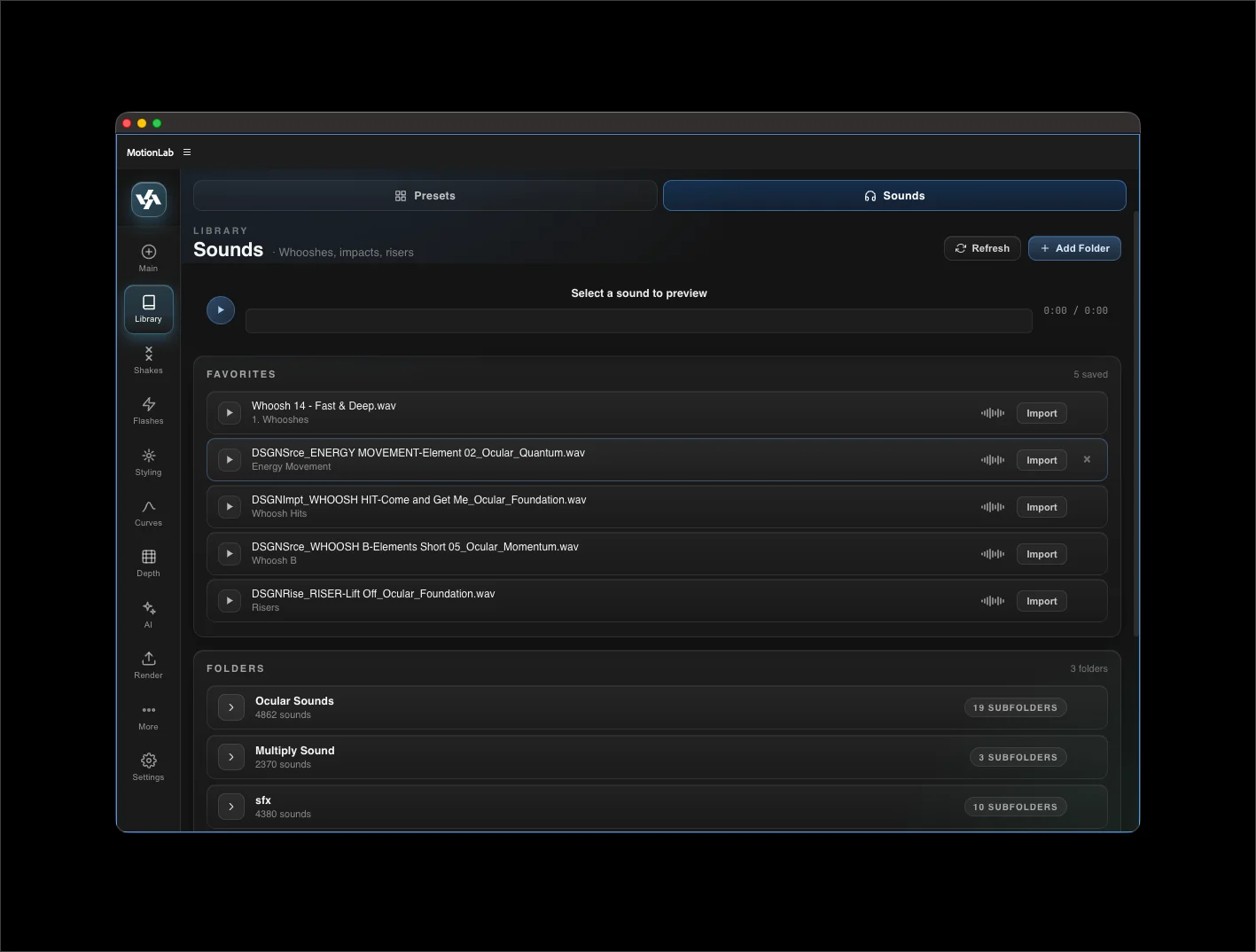
The Sounds sub-tab is a browseable library of user added audio assets — that drop directly into your comp at the playhead. Available on Pro, Full, and demo tiers.
See Audio for beat detection and marker placement that pair well with the Sounds library.