First Look
A quick tour of the panel layout, how interactions work, and where to find the things that aren't in the main sidebar.
Layout
MotionLab is a vertical sidebar of icons on the left and the active tab's content on the right. Each sidebar icon switches tabs; some tabs (Main, Transitions, Shakes, Flashes) have an additional preview panel on the right edge for hover previews.
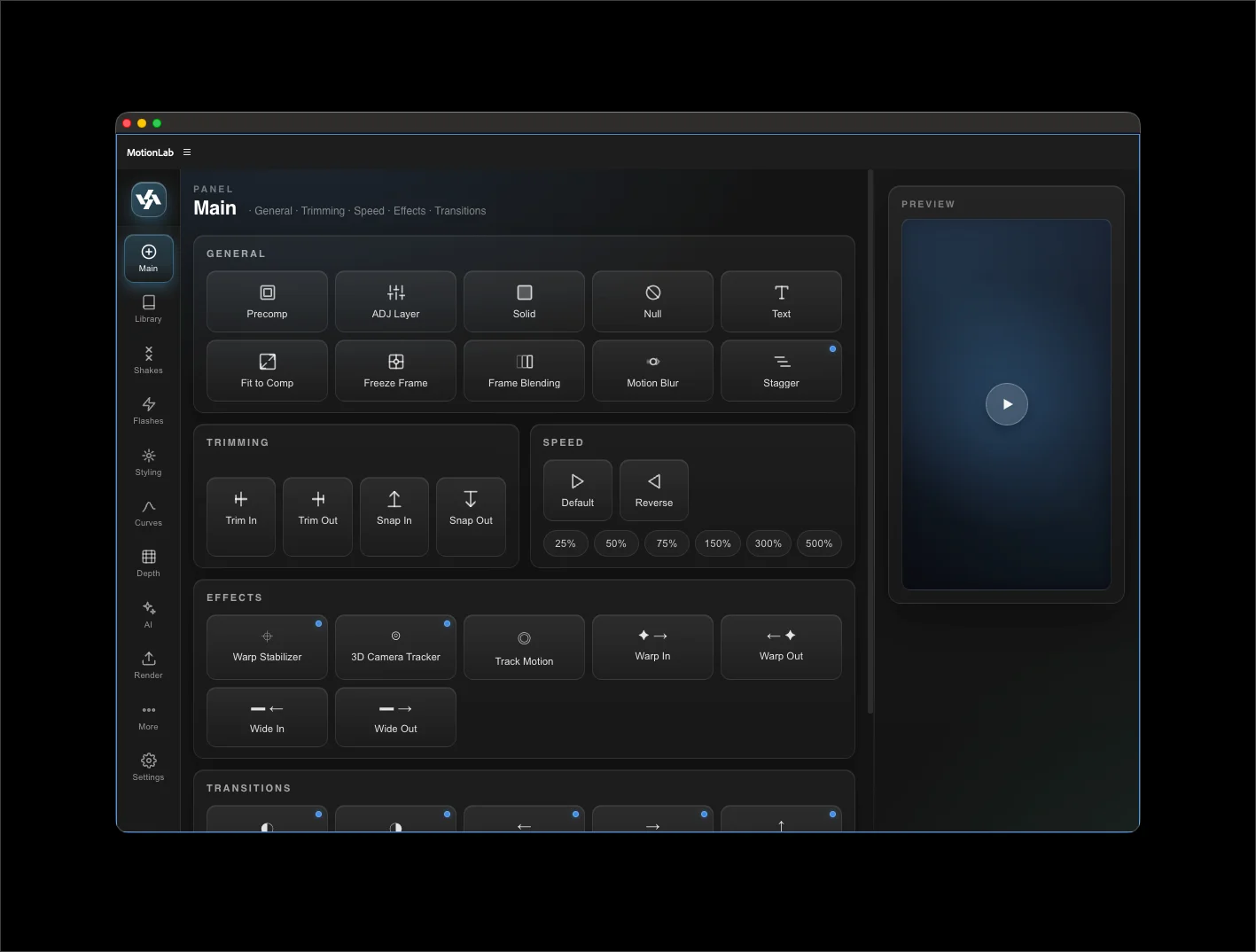
The exact tabs you see depend on your license tier. Starter sees four tabs; Full sees everything.
Three interaction patterns
Every action in MotionLab uses one of three patterns. Recognizing which is which helps you predict what will happen on click.
One-click apply
Buttons in the Shakes tab, simple Effects buttons in the Main tab, and most flash presets. Click → effect applies to the selected layer → button flashes green for success, red for failure. No dialog, no params — sensible defaults.
Param modal
For effects with adjustable parameters (Warp Stabilizer, 3D Camera Tracker, transitions). Click → a centered modal opens with sliders, dropdowns, and checkboxes → adjust → click Apply. The modal closes on apply or when you click outside.
Action button
The Main tab's General row (Pre-Compose, Adjustment Layer, Solid, Null, Text, Fit to Comp, Freeze Frame, Pixel Motion, Motion Blur) and the Speed row (Default, Reverse, percentage buttons). Each is a single-click action with a brief feedback flash.
Preview panels
Main, Transitions, Shakes, and Flashes have a permanently-visible preview panel on the right side. Hover any button with a preview video and the panel plays a short clip of the effect. Mouse-leave resets to the placeholder. Useful for browsing presets you don't recognize.
Preview clips stream from our servers instead of shipping inside the extension, which keeps the download under a megabyte. Each one needs an internet connection the first time you view it, then plays instantly from cache after that. Presets themselves always work offline — see Troubleshooting if a preview stays blank.
The More menu
Less-frequent actions live in a More popover at the bottom of the sidebar — Contact, Clear Clip, and Purge Cache. The popover opens above the More button and supports arrow keys, Home, End, and Escape for keyboard navigation.
Settings
The gear icon at the bottom of the sidebar opens the Settings tab — appearance (accent color, background, glow, font size, compact mode), layer label colors per layer type, license key, and account info. See Settings for the full reference.
Undo and redo
Every MotionLab action wraps in an After Effects undo group, named with a "MotionLab: …" prefix. Cmd/Ctrl + Z in AE undoes the whole operation in one shot, even if it touched multiple keyframes or layers.